Build an accessory list from the accepted layout and the monitor manual. Separate items required for safe use or reliable measurement from items that make practice more convenient. Compatibility should be established by model and intended use, not by a broad promise that an accessory works with golf simulators.
Start with the missing function
For every proposed accessory, write the problem it solves:
- Containment: containing the ball.
- Mat: providing a hitting surface.
- Stand or mount: placing the monitor correctly.
- Balls or markers: capturing a supported measurement.
- Computer or display: displaying software.
- Case: protecting equipment during transport.
If you cannot identify the function, leave it off the first order. A complete setup does not require buying every product marketed beside the monitor.
Use the indoor planning guide to establish dimensions and placement before selecting physical accessories. Keep a list of exact model numbers, required clearances, and connection types. A bundle may be convenient, but each included item still needs a reason to be there. Treat ambiguous compatibility language as a question for the manufacturer rather than a completed check.
Prioritize containment and the hitting surface
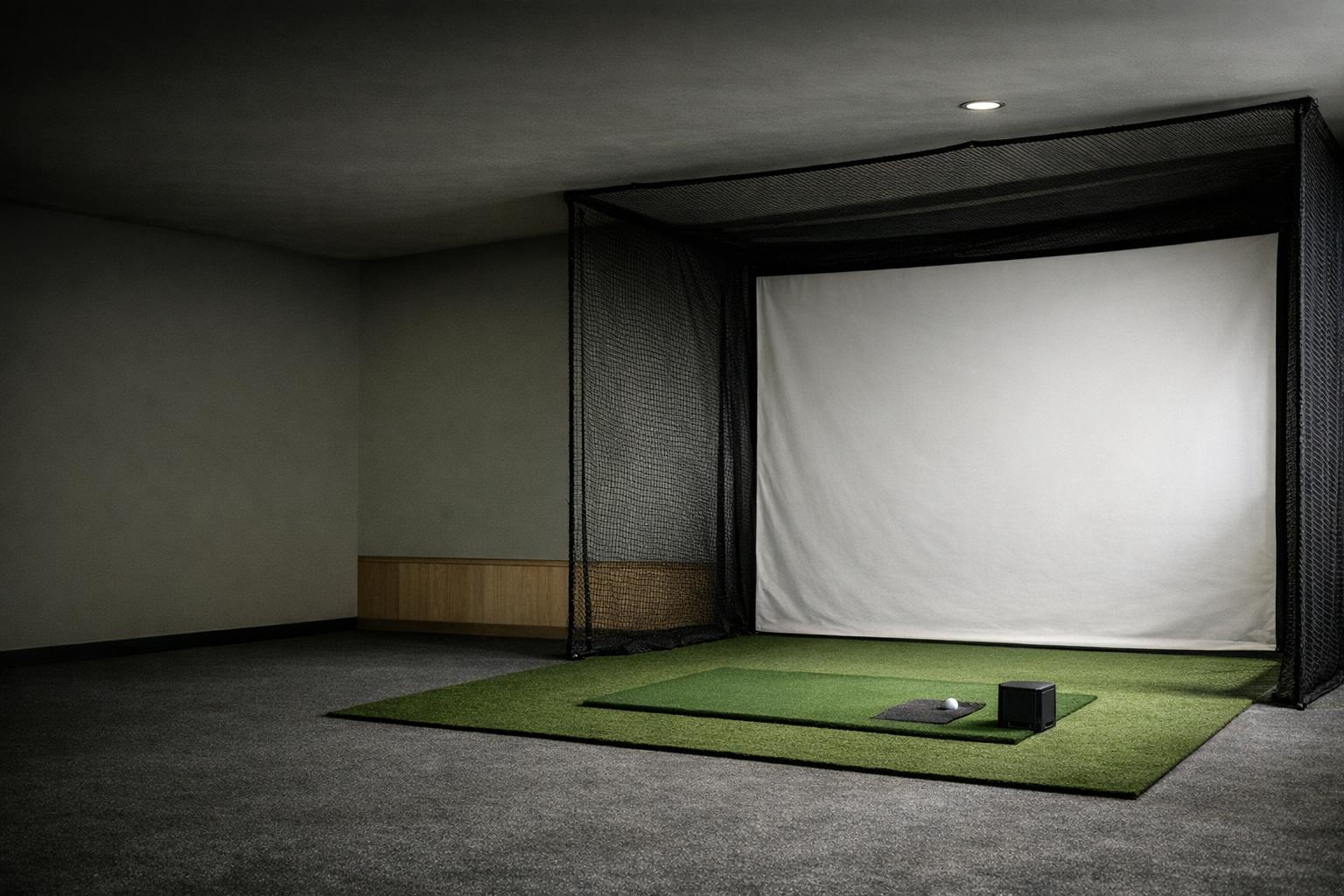
Choose a net or screen system intended for the way you will use it, then follow its installation and inspection instructions. Check the complete system, including supports, edges, and the space around it. Do not judge suitability solely from the size of the visible impact area or from a photograph taken in a different room.
Garmin's indoor setup cautions include containment coverage for errant shots and frame padding to reduce ricochet.[1] Apply the relevant product instructions to your own installation. A mat should fit the approved layout and let you establish the documented monitor-to-ball relationship. Revisit that relationship when changing mat thickness or moving an insert; an accessory that alters the geometry may require a new setup check.
Buy measurement accessories by supported model
Some indoor setups require particular balls or markers. Titleist publishes a list of launch monitors validated with RCT balls indoors.[4] Consult both the ball supplier and the monitor maker before treating a ball as the supported solution for your device. Our radar and camera guide explains why operating mode matters alongside the technology label.
FlightScope's FAQ identifies aluminum dots or Titleist RCT balls for accurate spin measurement in its listed limited-flight Mevo+ setup.[5] That instruction should not be generalized to every monitor or mode. Budget consumables as part of the routine and store them where they will actually be used. Do not substitute homemade markings or assume a visually similar ball will behave as a documented accessory.
| Accessory | Documented use | Caveat |
|---|---|---|
| Titleist RCT balls | Validated with listed launch monitors indoors | Check the monitor maker too |
| Aluminum dots or RCT balls | Spin in FlightScope's listed limited-flight Mevo+ setup | Not general to every monitor or mode |
Treat stands and mounts as placement tools
A stand should help achieve the manufacturer's required position without obscuring the sensor, destabilizing the device, or putting it in the swing or ball path. Check the complete installed dimensions rather than the stand's appearance. Do not buy a protective enclosure that blocks a required viewing area or assume an aftermarket case has manufacturer approval.
For a permanent mount, resolve the attachment method and location before installation. Follow both the monitor and mount instructions. For portable use, prefer a repeatable setup you can verify with ordinary measurements. Keep placement marks or a compact checklist with the equipment. The value of the accessory is the reliable position it enables, not a claim that merely adding it improves the accuracy of every reading.
Match computing and display to the software
Confirm the computer, operating system, graphics hardware, ports, and supported connection method for your intended application. The software compatibility checklist walks through those dependencies. Foresight's FSX Play documentation, for example, requires a Windows PC and lists specific hardware guidance.[6] A generic tablet stand or HDMI cable does not resolve an unsupported software platform.
Plan where controls and cables will sit during a normal session. Verify projector or display requirements with that equipment's documentation rather than choosing from screen diagonal alone. If a simple monitor lets you perform the desired practice task, a projection system can remain an optional later purchase. Keep display upgrades separate from the items that are essential for getting and reviewing shot data.
Finish with transport, storage, and spares
For a portable routine, check what the supplied case holds and whether you need protected space for approved balls, cables, and small accessories. Keep equipment dry, clean, and stored according to its own manual. Do not assume that a carrying case gives the monitor a weather rating or makes it suitable for storage in any vehicle or garage condition.
Build a short setup inventory and check it before leaving for the range. Purchase spares only where a missing component would otherwise stop a session and the replacement is documented as compatible. After several sessions, review what you actually use. The best accessory budget removes specific obstacles in a supported setup; it does not require an expensive collection of speculative upgrades before you have established a useful practice routine.